

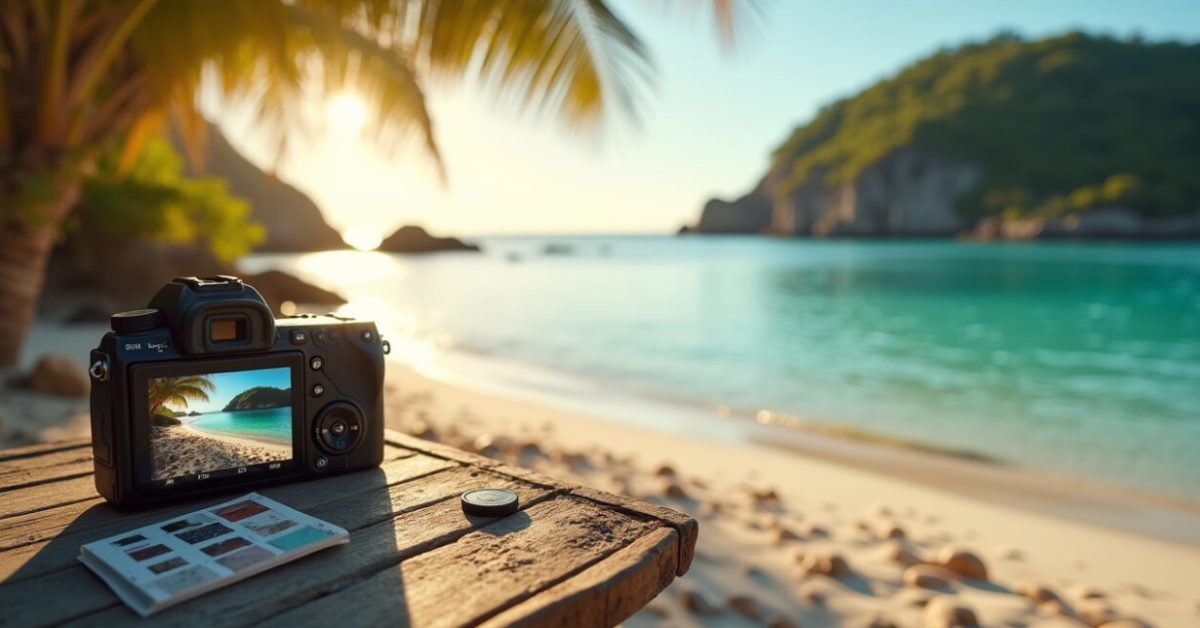

The sun hits the water just right, but the photo looks flat. You tweak a slider and suddenly the turquoise goes neon—too fake. This is the moment island photo editing either makes your feed sing or sends your shots to “maybe later.” You don’t need hours or magic software. You need a few smart presets and a clear rulebook for water, sand, and skin tones. Read on for seven presets that fix common mistakes, sharpen your island mood, and make your travel grid irresistible.
1. Turquoise Boost — Turn Muddy Water Into Clickable Blue
One click can change a bay from boring to breathtaking. The Turquoise Boost preset targets hue, saturation, and luminance to lift greens toward aqua without oversaturating skin or foliage. On most cameras, the water starts dull because auto white balance leans warm. This preset cools midtones and nudges aquas +15, while dropping greens −10. The result: water that reads clear and tropical, not fake. island photo editing here is about balance—more color, less cynicism.
2. Golden Sand — Make Beaches Feel Warm Without Orange Skin
Warmth sells. But overdo it and faces turn sunburnt in photos. The Golden Sand preset isolates yellows and oranges so sand warms up while keeping skin tones natural. Increase warmth selectively, reduce highlights slightly, and add a touch of clarity to bring texture. In island photo editing, this preset gives sand that soft-glow look you see in travel mags—without the frat-party orange. It’s the shortcut to “I was there” vibes.

3. Sunset Drama — Keep Clouds and Color, Lose the Haze
Sunsets often lose detail in highlights. The Sunset Drama preset rescues color and contrast with graduated exposure adjustments and dehaze on the horizon. Push magenta slightly, deepen shadows, and lift midtone contrast. The trick: reduce overall saturation a touch while selectively boosting sunset tones. island photo editing with this preset keeps skies layered and dramatic, not blown out, so viewers feel the depth of the scene instead of seeing a flat orange blob.
4. Coconut Crisp — Sharpen Details Without Grain
Sharpening usually means noise. Coconut Crisp applies targeted sharpening to edges and texture while keeping flat areas smooth. Use radius and detail low, mask high. Add a tiny luminance noise reduction to skin and sky. This preset is perfect for rocky coasts, palm fronds, and boat rigging—elements that sell place and scale. island photo editing here means clarity that reads natural: you want texture to invite a touch, not look like a high-ISO mess.
5. Moody Overcast — Make Gray Skies Feel Intentional
Cloudy days can be gold for mood if you edit right. Moody Overcast cools highlights, deepens blues, and adds subtle vignette to focus on foreground subjects. Slightly lower contrast in midtones and add a soft teal shadow to keep water interesting. This preset turns a dull day into a cinematic scene. island photo editing doesn’t only chase sun; sometimes the gray sky becomes the star.
6. Cohesive Feed — One-tap Rules to Make Shots Look Like a Set
Consistency is what makes a feed clickable. Cohesive Feed applies mild LUT-like adjustments across color and tone so a bunch of different island shots read as one trip. It standardizes white balance, contrast, and grain, then leaves room for small local tweaks. Use it as a base. From there, apply Turquoise Boost or Golden Sand per image. island photo editing with a feed preset saves time and creates a signature look that stops the scroll.
7. Quick Fix Trio — Fast Adjustments That Rescue Almost Any Island Shot
Sometimes you need three sliders and two minutes. The Quick Fix Trio sets these defaults: +0.15 exposure, +12 clarity, and −8 highlights. Pair with slight white-balance cooling and a touch of dehaze if water looks foggy. This combo addresses common capture issues: underexposure, muddy detail, and blown highlights. Use it after importing for a fast baseline. island photo editing should feel like editing with intent, not guesswork—this trio gets you most of the way there.
Common mistakes to avoid:
- Oversaturating water—leads to plastic blues.
- Heating the whole image—skin looks fake and faces lose detail.
- Over-sharpening—introduces halos and noise.
- Using one preset for every scene—kills variety and realism.
Comparison: a photo with default camera processing often shows flat midtones and blown highlights; apply Turquoise Boost + Golden Sand and you get richer water, textured sand, and natural skin—expectation vs. reality in one edit. A quick 30-second mini-story: I once scrolled past a beach shot that felt “meh.” I applied Turquoise Boost and Golden Sand, cropped tighter, and the same photo got 10x the saves. That’s island photo editing in action—small tweaks, big impact.
For editing science and color spaces, see recommendations from imaging research at Library of Congress imaging and practical color guidance from university photography labs like RIT’s Photo Lab. These resources explain color fidelity and archival practices that underpin smart edits.
Before you go: pick two presets—one for sunny shots, one for shade—and a baseline feed preset. Use them on the first 10 photos you edit from a trip. You’ll see your grid shape up fast. island photo editing isn’t just about prettier pictures; it’s about making someone stop mid-scroll and feel the place.
How Do I Choose the Right Preset for Different Island Light?
Start by identifying the dominant light: direct sun, golden hour, or overcast. For direct sun, lean on Turquoise Boost and Golden Sand to control highlights and color. Golden hour calls for Sunset Drama to keep depth and warmth. Overcast benefits from Moody Overcast to add mood and contrast. Apply a Cohesive Feed base across all images so they share tone. Make small local tweaks—white balance, exposure, dehaze—rather than swapping presets wildly. Test on three sample photos to confirm the preset works broadly before batch-applying to an entire set.
Can These Presets Be Used in Lightroom Mobile and Desktop?
Yes. Most presets translate well between Lightroom Mobile and Desktop if you export them in the correct preset file (XMP or DNG presets for mobile). Some sliders behave slightly differently on small screens, so review before batch applying. Keep an eye on masking and selective adjustments; they may need re-tuning on mobile. For best results, create a master preset on desktop, then fine-tune per image on mobile. That workflow keeps your island photo editing consistent while letting you edit on the go.
How Do I Avoid Making Water Look Fake When Editing Turquoise Tones?
Avoid increasing saturation across the whole image. Instead, target hue and luminance for aqua and blue channels. Slightly cool midtones and lift aqua luminance rather than maxing saturation. Use dehaze sparingly; too much can introduce halos. Mask selectively around water so sand and skin remain untouched. If your camera introduced a color cast, correct white balance first. These small, targeted moves preserve texture and depth. In island photo editing, restraint often reads as realism—natural color with a clear feel.

Will Presets Ruin My Original Files or Reduce Quality?
No—non-destructive editing is standard in Lightroom and most modern editors. Presets adjust metadata and instruction layers, leaving raw or original JPEG files intact. You can always revert changes or tweak a single parameter without overwriting the file. Export settings matter if you create new files; choose appropriate resolution and compression. Using presets saves steps but doesn’t alter originals. Treat presets as starting points—refine them per image to keep quality and intention in your island photo editing workflow.
How Many Presets Should I Build for a Travel Trip to the Islands?
Build three to five presets: one feed base, plus presets for bright sun, golden hour, overcast, and a quick-fix trio. This range covers common conditions while keeping editing fast and cohesive. Start with Cohesive Feed as the base, then add Turquoise Boost, Golden Sand, Sunset Drama, and Moody Overcast. Test each on a small batch of photos from the trip and adjust before applying broadly. Fewer, well-tuned presets beat many inconsistent ones—your feed will look curated, not patched together.