

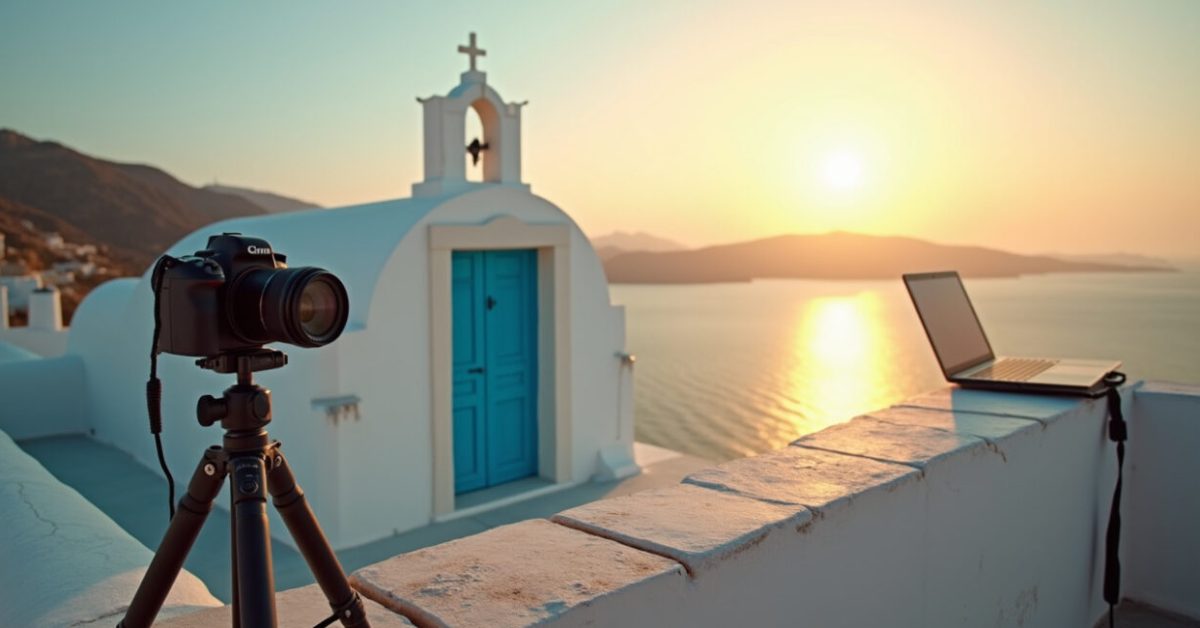

The sun is sinking behind a Cycladic chapel; the sea goes from bright turquoise to an almost impossible blue in thirty seconds. That split-second shift is where post-processing wins or fails. If your Lightroom sliders don’t know the language of the Aegean, your images will look like postcards from a stock catalog — polite but forgettable. Here you’ll learn practical Lightroom adjustments and presets tuned for Greek landscapes, so your photos keep a natural soul while gaining punch.
How to Make Aegean Blues Sing Without Oversaturating
Blue is the defining tone of Greek landscapes — and also the easiest to ruin in post-processing. Start in HSL: drop the saturation of cyan slightly, raise the blue luminance, and nudge hue toward teal for deep coastal water. Use a gentle Dehaze (5–12) to bring depth without crushing highlights. In post-processing, small hue moves outperform big saturation swings; they keep skin tones and white buildings honest while giving the sea that cinematic blue.
The Contrast Trick Photographers Miss (shadows, Not Blacks)
Contrast comes from structure, not just the Contrast slider. Push shadows up (+15 to +35) to recover detail in shaded cliffs, then use the Tone Curve to add midtone contrast. Increase Clarity carefully (around +10) to make rock textures pop, but pair it with a local mask — clarity across the whole frame often reads harsh. Post-processing here is a balancing act: keep the drama without making the image feel like HDR wallpaper.

Selective Edits That Preserve the “Greek Light”
Local adjustments are where a good image becomes memorable. Use radial filters to brighten whitewashed houses and lower highlights on skies with graduated filters. Brush in temperature selectively: cool the sea and warm the foreground by 2–4 points to mimic how our eyes see depth. In post-processing, the goal is invisible fixing: viewers should feel the light, not notice your edits.
Presets Tuned for Islands: What to Include (and What to Avoid)
Design presets as starting points, not one-click truths. Good island presets do three things: consistent blue grading, controlled contrast, and selective clarity. Avoid presets that boost saturation +30 and clarity +40 — they flatten nuance. Build presets that adjust HSL, add a subtle split toning (warm highlights, cool shadows), and apply a gentle sharpening mask only to textures. In post-processing, presets save time but should be tweaked per image.
The One Comparison That Shows Everything: Before/after You’ll Actually Notice
A single before/after beats explanations. Imagine the original: flat sky, underexposed foreground, dull sea. After post-processing: sky regains gradient, foreground recovers color, sea deepens to Aegean blue without clipping. That contrast—expectation versus reality—reveals which tools mattered: HSL tweaks, shadow recovery, and selective warmth. This comparison proves that thoughtful local edits outperform global sliders when you want drama that still feels real.
Common Mistakes (and How to Avoid Them)
Most errors come from one-size-fits-all thinking. Here’s a short list to dodge:
- Over-saturating blues — makes skin and whites look fake.
- Using extreme Dehaze — kills beautiful haze and soft light.
- Global clarity boosts — flatten skies and make foliage noisy.
- Sharpening the whole frame — introduces halos around edges.
- Presets without adjustment — every island and hour is different.
In post-processing, always check your edits at 100% and on different screens. A fix that looks bold and clean on one phone can be muddy on another.
The Micro-adjustments That Feel Like Magic
Tiny moves add up to images that stop the scroll. Try these: +8 blue luminance, -6 cyan saturation, +10 shadows, -4 highlights, +6 clarity on rocks only, and split tone with +10 warm in highlights and -8 cool in shadows. Use a subtle vignette to draw the eye to the focal point. In post-processing, the sum of small, purposeful edits creates the natural-but-punchy look that Greek landscapes deserve.
For technical context and color science reads, see research on human color perception at NCBI, and best practices for image file handling from university imaging labs like The Society for Imaging Science and Technology. These resources back up why subtlety often beats extremes.
Now, when you edit the next sunset over Santorini, remember this: people respond to believable light. Make the sea and sky sing, but keep the soul of the scene intact. That choice separates a pretty photo from one people remember.
How Do I Prevent Blue Tones from Clipping in Lightroom?
Check the histogram and target blues in the HSL panel rather than only cranking saturation. Lower cyan saturation slightly and raise blue luminance to preserve detail. Use the Highlight and Whites sliders to avoid blown highlights in reflections, and apply a local mask to reduce exposure on the brightest areas. Zoom to 100% and inspect edges and clouds; clipping often hides there. Finally, export with a soft gamut conversion (sRGB for web) and preview on different displays to ensure blues stay rich but not clipped.
What Preset Settings Work Best for Daytime Island Landscapes?
Start with a preset that adjusts HSL to favor deeper blues and slightly cooler shadows. Include a modest Dehaze (+5–12), shadow recovery (+15–30), and clarity targeted only to textures like rocks. Keep saturation changes conservative and add split toning: warm highlights (+6 to +12) with cool shadows (-4 to -10). Save the preset as a base; then tweak temperature and exposure per shot. The best preset is lightweight—fast to apply but meant to be refined to match the light and location.
When Should I Use Dehaze Vs. Clarity in Post-processing?
Use Dehaze to restore midtone contrast and atmospheric depth, especially for distant islands and misty mornings. Keep it mild—overuse flattens highlights. Clarity sharpens perceived midtone contrast and texture, which is great for rock faces and foliage, but avoid applying it globally. Prefer local clarity with a brush when you want textures to pop without making the sky or skin harsh. Both are powerful in post-processing; the trick is to apply each where it complements the subject, not across the entire frame.
How Do I Keep Whitewashed Buildings from Turning Gray or Yellow?
Protect whites by dialing down highlights and whites slightly, then use a local adjustment to warm or cool specific areas. In HSL, reduce orange saturation if skin or terraces shift, and nudge the white balance toward neutral for those surfaces. Use a small positive exposure or a brushed clarity increase to restore crisp edges. Always sample white in the image with the eyedropper if needed, then adjust tint subtly. The goal is bright, clean whites without color casts from surrounding hues.

Which Export Settings Preserve Aegean Blues for Web and Print?
For web, export in sRGB, 8-bit, quality 80–90, and sharpen for screen. For print, use Adobe RGB or ProPhoto if your lab accepts it, 16-bit TIFF or high-quality JPG, and convert color profile based on the printer’s recommendations. Keep resolution at 300 ppi for prints and around 2048–3000 px on the long edge for full-screen web presentation. In post-processing, always soft-proof the chosen profile to catch color shifts before export.