
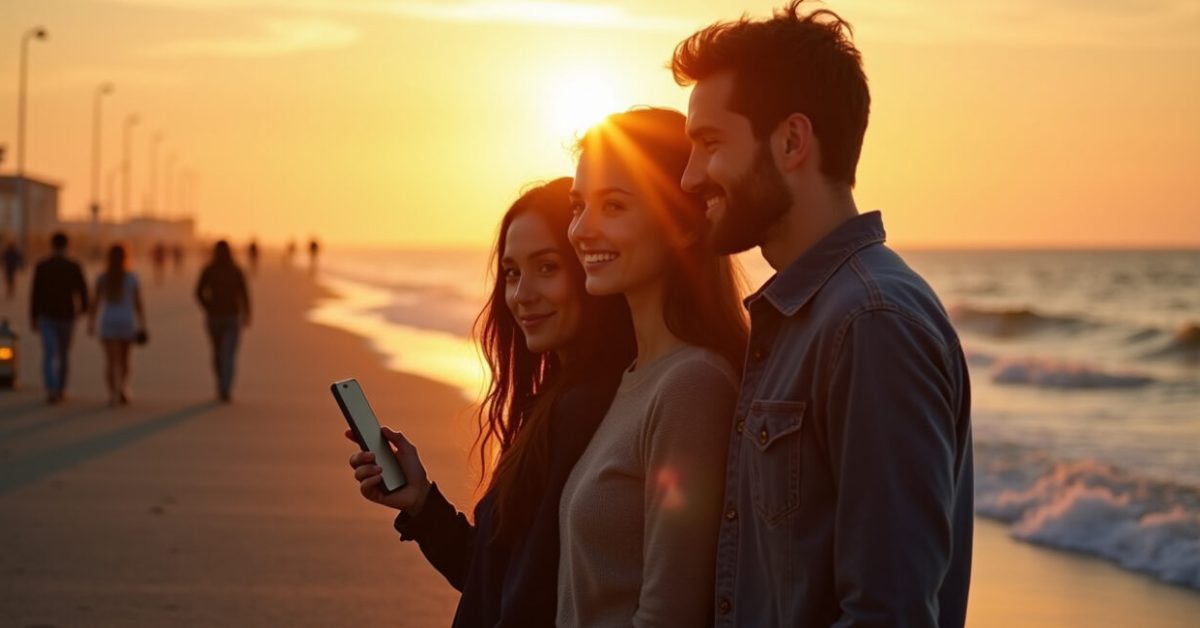

Sunset was bright, the faces were in shadow, and the photo on my phone looked like a postcard gone wrong. I tweaked five phone camera settings in 30 seconds and saved the moment. If you want exposure you can trust — not guesswork — read on.
Set ISO Like a Photographer, Not a Default
ISO controls noise and brightness — treat it like a volume knob, not the whole mix. On most phones the camera auto-raises ISO in low light and the shot gets grainy. Switch to manual or pro mode and pick the lowest ISO that still gives you a usable shutter equivalent. For daylight, use ISO 50–200. Indoors, 400–800. Late night, accept grain above 1600 only if you can’t use a tripod. These phone camera settings cut noise fast.
- Quick check: tap a dark area and see if grain appears at 100% view.
- Error to avoid: never leave ISO on auto when you need a clean sky.
Use Shutter Speed Equivalents to Freeze or Blur Motion
Phones don’t show a long number, but the concept is the same: faster shutter = less motion blur. In bright scenes, aim for 1/250–1/500s to freeze action. For motion blur (water, traffic trails), use a phone on a tripod or steady surface and drop to 1/15–1/2s with exposure compensation down. If your phone uses “shutter priority” or “pro” mode, control it directly; otherwise, lock exposure and lower ISO to force a longer exposure. These phone camera settings change the feel of a photo instantly.

White Balance That Looks Like What You Remember
White balance sets the mood — warm or cold, accurate or stylized. Auto white balance is fine most of the time, but it can shift mid-shoot. Pick a preset (daylight, cloudy, tungsten) to fix color casts. For tricky mixed light, use the Kelvin slider if available: 5200K for daylight, 3200K for indoor tungsten. Small shifts matter: a 200K change can make skin look sick or glowy. Make white balance one of your essential phone camera settings for consistent color.
Focus Lock: Stop the Guessing Game
Tap-and-hold to lock focus and exposure — then recompose without surprises. Phones will refocus if you move or if something new enters the frame. Use focus lock when shooting portraits or close-ups so the subject stays sharp and exposure doesn’t bounce. For tiny subjects, switch to macro or move back and crop in — the camera’s minimum focus distance is a hard limit. This simple step makes phone camera settings behave like a practiced photographer‘s routine.
Exposure Compensation: Fix the Auto That Lies
Exposure compensation (+/−) is the fastest way to correct what auto metering gets wrong. Backlit people, bright snow, or a spotlight can trick the meter. Dial +0.7 to brighten a dark subject, or −1.0 to recover blown highlights on bright skies. Use the histogram or preview to verify. Exposure compensation is one of the most underrated phone camera settings — small nudges often save the shot without switching modes.
- Quick check: tap the highlight area; if blown, reduce exposure compensation.
- What to avoid: overcompensating and relying on HDR to fix everything.
RAW Vs JPEG: Pick One Depending on Control Needed
Shoot RAW when you need latitude; use JPEG for speed and social-ready images. RAW preserves exposure and color data so you can recover highlights or adjust white balance later. JPEG applies camera processing — saturation, sharpening, noise reduction — and is fine when you need quick results. If you plan to tweak exposure, white balance, or recover shadows, enable RAW in your phone camera settings. If storage or speed matters, stick with high-quality JPEG.
| Need | Choose |
|---|---|
| Quick share | JPEG |
| Edit later | RAW |
The One-minute Pre-shot Checklist That Wins Photos
A consistent pre-shot routine fixes most exposure failures before you press the shutter. Spend 60 seconds: check ISO, glance at shutter equivalent, confirm white balance, tap to lock focus, and nudge exposure compensation if needed. This short ritual beats guesswork. I used to miss family shots until I made this a habit — now I get usable photos most of the time. Turn these phone camera settings into a reflex and you’ll stop blaming luck.
- Comparison: before (random auto) vs after (quick 60s check) — one looks professional, the other doesn’t.
- Common mistakes: relying solely on HDR, ignoring highlights, and not stabilizing for slow shutter.
For deeper reading on camera exposure and human vision, see National Geographic on light and cameras and technical notes at NIST. These sources back up why exposure control matters beyond aesthetics.
Next time you frame a shot, don’t hope auto gets it right. Use five deliberate phone camera settings and own the exposure. Your photos — and your memories — will thank you.
How Do I Choose the Right ISO for Night Photos?
Start by stabilizing the phone—tripod or steady surface—then pick the lowest ISO that gives you a usable preview without blur. If you can hold the phone steady at 1/30s, try ISO 400–800. If you need 1/8s or longer, drop ISO and use a tripod instead. Remember that higher ISO increases noise; sometimes a slightly darker but sharper image is better than a bright, grainy one. Experiment with a few combinations and use the histogram to judge exposure objectively rather than relying on the screen alone.
When Should I Use Manual Shutter Equivalents Instead of Auto?
Choose manual shutter equivalents when motion matters: sports, moving cars, or flowing water. Auto often picks a shutter too slow and introduces blur, or too fast and underexposes the image. If you want freeze action set faster speeds like 1/250s or higher; for creative blur drop to 1/15–1/2s with a steady phone. Use exposure compensation or ISO adjustments to balance brightness. Manual control is especially helpful in mixed light or backlit scenes where auto metering can lie to you.
Can White Balance Be Fixed After Shooting in RAW?
Yes. RAW files retain full color temperature and tint data, so you can correct white balance in post without losing quality. This gives you more flexibility than JPEG, where white balance adjustments can degrade color or introduce artifacts. If you expect tricky lighting or want consistent tones across a series, shoot RAW. Remember that RAW files need editing software to convert and process, so plan for the extra step if you’re shooting with the intent to adjust white balance afterwards.
Is Lock Focus Really Necessary for Quick Shots?
For many quick shots, tap-to-focus is fine. Lock focus becomes crucial when your subject is close, moving slightly, or backlit. Without lock, the phone may refocus on a different plane or object, changing composition and exposure. Focus lock also stabilizes exposure if your phone ties exposure to the focus point. For portraits or macros where precision matters, a brief tap-and-hold to lock focus and exposure prevents the camera from re-evaluating the scene and ruining the moment.
How Much Should I Rely on HDR to Fix Exposure?
HDR is useful for high-contrast scenes, but it’s not a cure-all. It combines multiple exposures to balance highlights and shadows, which helps landscapes and backlit portraits. However, HDR can soften motion and reduce contrast drama, and phones may mis-handle bright specular highlights. Use exposure compensation and the pre-shot checklist to get a good base exposure; then let HDR be a safety net, not the first option. For critical shots, shoot RAW plus HDR off to keep control in editing.