

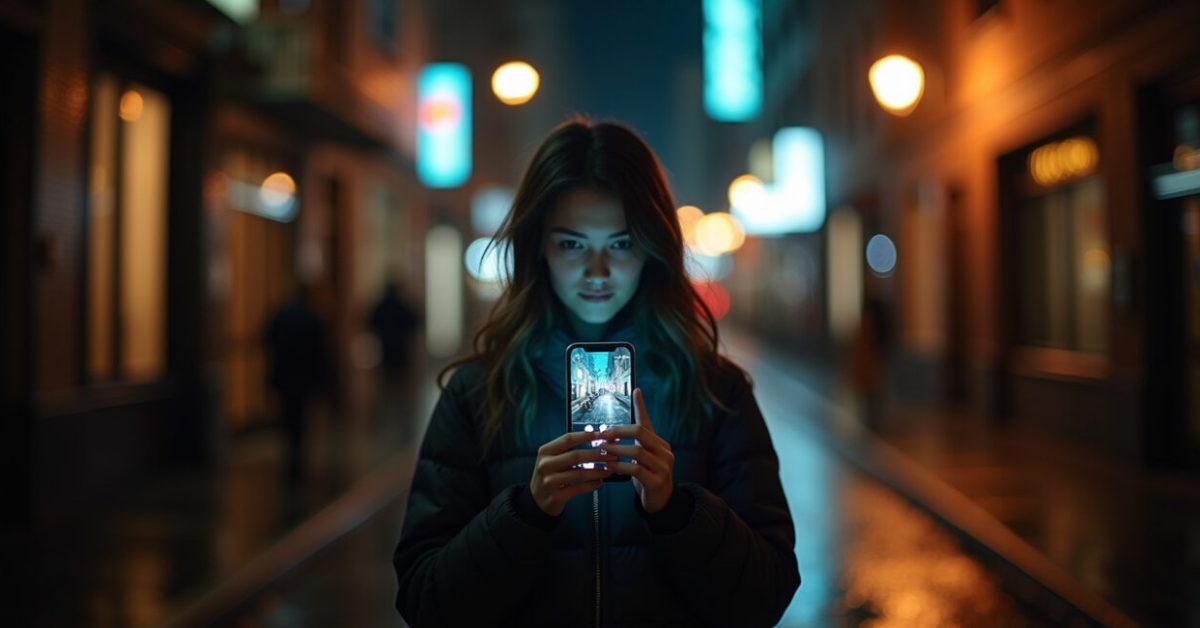

Streetlights blur into soft halos. Shadows swallow detail. That dim phone photo you thought was lost? With the right moves, night photo editing can turn it into something cinematic in minutes. This isn’t about heavy filters — it’s about six quick, surgical edits that control noise, rescue color, and keep texture while boosting mood.
The One Tweak That Fixes Noisy Shadows Fast
Noise is the real enemy of night photo editing. Start by reducing luminance noise selectively, not globally. Use a mask or brush to target shadows and flat skies where noise shows most. The trick: preserve small-scale detail by keeping the strength low and using radius/threshold to avoid smearing. In practice, a 30–40% reduction on a masked layer often cleans things up without turning trim edges into oil paint. Your image will look less “grainy” and more honest.
How Selective Sharpening Rescues Texture Without Boosting Noise
Sharpening at night is a delicate balance. Apply sharpening only to edges and textured areas — not to smooth gradients or noisy shadows. Use an edge mask or high-pass layer set to overlay. This keeps building facades and string lights crisp while leaving the night sky calm. A common mistake: global sharpening increases visible noise. Instead, paint your sharpening onto subjects and architecture. The result? Detail pops where you want it, and unwanted grain stays hidden.

Color Temperature Fixes That Make Scenes Feel Real
Night scenes often have mixed lighting: sodium orange, LED blue, neon magenta. In night photo editing, correct the overall white balance first, then use local temperature shifts for mood. Split-toning or selective color tools let you warm highlights and cool shadows slightly — a small touch goes a long way. Keep human skin colors natural by isolating faces before applying dramatic color shifts. That preserves realism while enhancing atmosphere.
Tone Mapping: Keep Detail and Add Drama Without Halos
Tone mapping is where a shot becomes cinematic. Use subtle local contrast and micro-contrast to reveal texture in midtones and shadows. Avoid extreme global clarity — that creates halos around lights. Instead, apply dodging and burning on separate layers, and use a mild curve to lift shadows but keep blacks deep. Tone mapping that respects highlights keeps stars and streetlights from clipping, while revealing what was hiding in the dark.
Six Fast Steps: A Workflow You Can Repeat in Five Minutes
Make this your routine: (1) Basic exposure + highlight recovery, (2) Selective noise reduction, (3) Targeted sharpening, (4) White balance and localized color shifts, (5) Tone mapping with dodging/burning, (6) Finish with subtle grain and export sharpening. Those six steps cover the essentials of night photo editing and are fast because each targets one problem. Repeat them in order and you’ll avoid redoing work. This sequence saves time and keeps edits consistent.
Common Mistakes That Ruin Night Photos (and How to Avoid Them)
People overdo noise reduction, crank global sharpening, or apply one-size-fits-all color filters. Biggest error: treating the whole image the same. Night scenes need local fixes. Avoid pushing exposure too far — that introduces artifacts. Don’t lift blacks to hide noise; instead, reduce noise then selectively reveal shadow detail. Finally, don’t skip the final check at 100% zoom: what looks clean at screen size can fall apart up close. Fix these and your edits will stand up to scrutiny.
A Quick Comparison That Flips How You See Low-light Shots
Expectation: brighten everything and slap on a filter. Reality: you’ll get blown highlights and ugly noise. Compare two approaches: a naive global brightening vs. a six-step targeted edit. The naive result loses stars and shows mottled shadows. The targeted edit keeps highlights intact, cuts noise, and retains texture. That before/after comparison teaches a simple rule: selective fixes win. Once you see the difference, you’ll stop over-editing and start rescuing real detail.
One night I shot a rainy alley at ISO 6400. The RAW looked hopeless — grain everywhere, dull neon. I applied the six-step routine above, masked noise reduction to the pavement, warmed the neon selectively, and dodged the puddle reflections. Ten minutes later the photo read like it was shot with better light. That small edit turned a forgettable frame into a mood piece people slowed to look at.
For technique depth and science behind noise behavior, see research at NIST. For color management and human perception details, the work at International Color Consortium is a great resource.
Night photo editing is less about flashy filters and more about purposeful corrections. When you control noise, sharpen selectively, fix color, and tone map with care, dim images stop being excuses and become stories. Try these six steps on your next low-light photo. If it still feels flat, revisit step two — noise control is often the overlooked key.
How Much Noise Reduction is Too Much?
Too much noise reduction makes textures look painted and smooths away fine detail. A safe approach: reduce luminance noise in targeted areas first, using masks on skies and flat surfaces. Keep strength moderate — often 25–50% is enough — and adjust radius so edges remain crisp. Check edits at 100% zoom and compare with the original. If building detail or hair starts to blur, dial back. The goal is cleaner shadows, not a plastic look.
Can I Sharpen Without Increasing Visible Noise?
Yes. The trick is selective sharpening. Apply sharpening only to edges and textured subjects using an edge mask or a high-pass layer. Avoid sharpening smooth gradients and noisy shadow areas. Use lower amounts and smaller radii for night images. If noise still increases, reduce sharpening strength or add a subtle noise reduction layer underneath your sharpening. This protects texture where you want it and keeps grain from getting louder.
Should I Use Presets or Edit Manually for Night Photos?
Presets can give a quick look, but they rarely solve specific night issues like mixed light or localized noise. Manual editing is better: white balance shifts, masked noise reduction, and local tone adjustments let you address problems precisely. Use presets as a starting point, then tweak carefully. Manual steps deliver better, repeatable results and teach you what each control does. Over time you’ll develop faster, smarter edits than any preset can provide.
What Export Settings Keep Night Edits Looking Good Online?
Export with a sensible balance between file size and quality. For web, export JPEG at 80–90% quality with sRGB color profile. Add a slight export sharpening tuned for the display size — less for social thumbnails, more for larger displays. Avoid heavy compression that creates blocky artifacts around lights. Also check the final image at 100% to ensure highlights aren’t banded. Proper export keeps the work you did in night photo editing visible and clean for viewers.
How Do I Preserve Skin Tones When Shifting Color in Night Scenes?
Preserve skin by isolating faces before applying global color shifts. Use an HSL or color range mask to protect skin tones, or paint a local adjustment brush over faces and set it to zero for temperature/tint changes. If you must apply a strong creative color grade, reduce its influence on the skin mask. Small, targeted tweaks keep skin natural while letting you push mood elsewhere in the frame. This keeps portraits believable even in dramatic night lighting.