

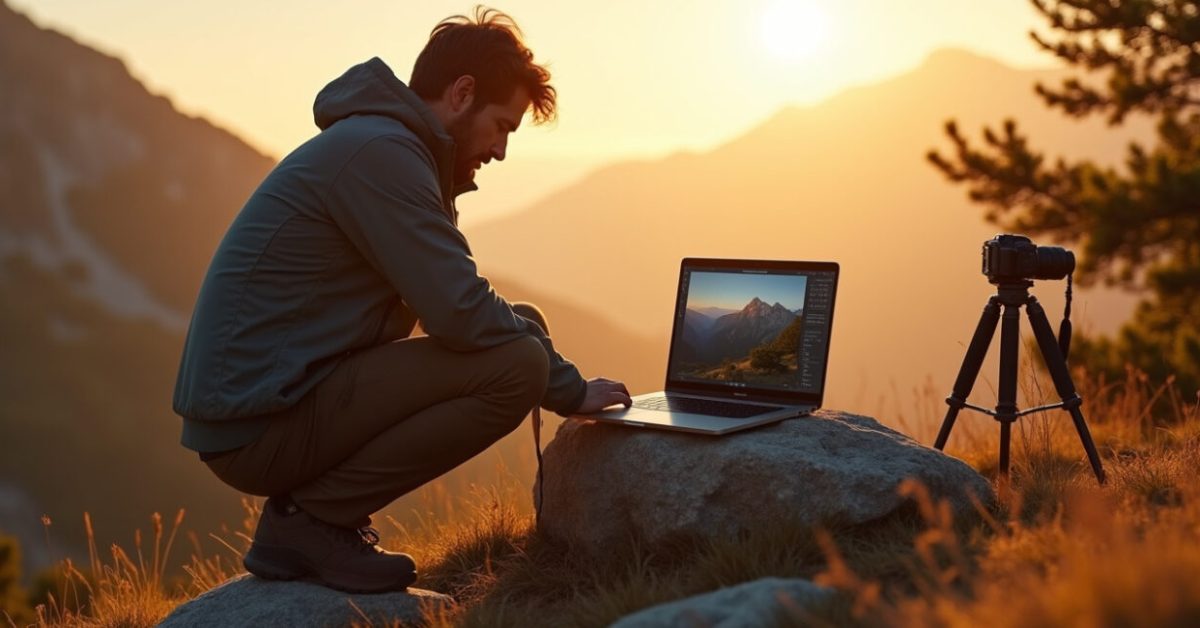

You reach for your laptop after a long hike, load the RAW files, and the mountain looks flat and lifeless compared to how it felt. That gap between memory and image is where nature photo editing lives — and where most travel galleries fail or shine. In the next minutes you’ll learn quick, repeatable color grading moves, local fixes, and preset strategies that match the mood you actually saw in the field.
How Pros Match the Scene’s Mood in Under Five Minutes
The fastest trick is to fix the story, not the numbers. When you open a file for nature photo editing, start by asking: was this warm and golden, cold and crisp, or moody and muted? Pick one direction and commit. Adjust white balance, exposure, and contrast as a bundle, not separately. That single decision shaves time and keeps images consistent across a gallery.
- Warm landscape: +20–40K on Temp, +10 Vibrance, +15 Highlights down
- Cool dawn: -10–30K on Temp, +8 Clarity, -5 Saturation if greens overshoot
- Moody: Lower overall exposure, raise shadows selectively, add teal in midtones
The Color-grade Secret No One Teaches at Workshops
Use split-toning like a film emulation, not a filter. In nature photo editing, gently push highlights toward the warm color you remember and the shadows a complementary cool or magenta. This recreates depth the eye saw. Small moves matter: 5–10 points in the highlights and shadows wheels can transform mood without screaming “preset.”
Comparison: a photo with default tones versus one with subtle split-toning often shows more dimensional color and feels truer to memory. That before/after is why pros spend time here.

Local Adjustments That Sell the Image — And How to Do Them Fast
Local edits trump global tweaks for believability. Use a few targeted brushes or radial filters: brighten the subject by 0.3–0.7 EV, warm the sky rim by 5–10K, and add micro-contrast to foreground textures. Keep the feather soft; abrupt masks break the illusion.
- Dodging the path by +0.4 EV draws the eye.
- Subtle dehaze on distant ridgelines restores lost contrast.
- Use a negative exposure brush to deepen storm clouds, not saturation.
Presets: How to Build a System That Creates Consistent Travel Galleries
Presets are starting points, not final answers. Create three stacked presets: one for base exposure/WB, one for tone curve and color grade, and one for finishing touches like grain and sharpening. Apply them in that order, then tweak. This modular approach keeps galleries cohesive while allowing per-image nuance in your nature photo editing workflow.
- Base preset: RAW camera profile, +0.6 exposure if underexposed.
- Grade preset: tone curve S-shape, split-tones for mood.
- Finish preset: output sharpening, subtle grain (5–10).
What Most Photographers Do Wrong (and How to Stop)
Common errors derail more images than bad light does. The main culprits in nature photo editing are: over-saturation, heavy global clarity, and leaving chromatic aberration untouched. Avoid these and you rescue dozens of photos in a single pass.
- Error: Cranking saturation. Fix: Use Vibrance first, then selective HSL adjustments.
- Error: Overdoing dehaze. Fix: Combine dehaze with targeted shadow recovery.
- Error: One-size-fits-all preset. Fix: Layer presets and adjust per image.
A Tiny Story About a Three-minute Save That Made an Exhibit
The last light on a coastline went thin. I shot in haste and packed up thinking the day was lost. Back home, one radial gradient on the horizon, a -0.5 EV dodge on the foreground, and a soft warm split-tone later—suddenly the frame read like the memory. That image ended up in a small show. That three-minute edit is why learning quick nature photo editing matters more than chasing perfect light.
Putting It Together: A Checklist to Edit Faster and Stay True to the Field
Work in this order for reliable results:
- Set white balance to the feeling you remember.
- Fix exposure and contrast globally.
- Apply your stacked presets (base → grade → finish).
- Do 2–3 local adjustments: dodge, burn, and dehaze where needed.
- Check color shifts on skin/plants; use HSL to dial back problem hues.
When you follow that flow, your nature photo editing becomes predictable and efficient. Your gallery will feel like one trip, not a random collection.
For deeper color science and perceptual models, see research at NIST. For guidance on ethical image adjustments and metadata, the Library of Congress offers solid standards at Library of Congress.
Final provocation: the photo that matches your memory isn’t the one with the highest saturation or contrast. It’s the one where editing choices tell the same story your eyes and heart felt on location. Edit to remind, not to impress.
How Do I Start a Consistent Preset System for My Travel Galleries?
Begin with three modular presets: base (WB/exposure), grade (tone curve/split-tone), and finish (sharpen/grain). Apply the base preset first to normalize RAW files across a trip. Use the grade preset to lock in a mood—warm, cool, or muted—and then add the finish preset for output-specific tweaks. Tweak each image after applying presets rather than treating them as final. This gives consistency while keeping room for per-photo nuance and prevents the “all photos look the same” trap.
Which Local Adjustments Fix “flat” Landscapes Most Effectively?
Start with local contrast: use a subtle brush to add +10–20 clarity or texture to foreground elements, then dodge the subject by +0.3–0.7 EV to pull focus. Use a radial gradient to warm or cool the sky’s edge and a negative exposure brush to deepen clouds. Apply dehaze sparingly on mid-distance ridges to restore separation. These targeted moves revive depth without making the scene look oversharpened or artificial, and they keep the nature photo editing believable.
How Much Should I Trust Auto Color or AI Tools for Nature Photos?
Auto tools are great as a starting point: they quickly correct exposure and neutralize obvious color casts. But where nature photo editing matters is in mood and context—AI won’t know whether that sunrise felt warm or clinical. Use auto for speed, then make intentional creative choices: adjust white balance toward the remembered warmth, refine split-tones, and apply local edits. Treat AI as an assistant, not the final decision-maker.

What Camera Metadata Should I Preserve When Editing for Discover Galleries?
Keep original EXIF metadata intact: focal length, aperture, ISO, and timestamp. These details add credibility and storytelling value in editorial and Discover contexts. Also preserve copyright and location metadata if you plan to credit or license images. If you remove location for privacy, document that in your workflow. Proper metadata helps publishers trust and use your work and aids discoverability when galleries grow across platforms.
Which File Formats and Export Settings Work Best for Web Discover Galleries?
Export high-quality JPEGs with sRGB color profile for web, using 75–85% quality to balance size and fidelity. For platforms that support it, WebP at similar quality reduces file size. Resize images to the longest edge used by the platform (often 2048–3000 px) and apply sharpening for screen output. Embed metadata and a descriptive filename. These steps keep images crisp on mobile while staying fast to load—critical for Discover performance.