



Three days after a newborn session I opened a folder with 128 files and felt my chest tighten. I didn’t need to edit each image from scratch. What I needed was a tight, repeatable Batch Editing routine that keeps skin soft, whites pure, and time under control. Batch Editing becomes a lifesaver when every minute matters and every parent expects a gallery that feels handcrafted.
The Single Tweak That Shaves Hours Off Newborn Edits
Pick one global look first, not individual images. Start by choosing a single frame that represents the set: same light, same wrap, same pose. Do your major adjustments there — exposure, white balance, and a base skin tone — because Batch Editing copies those changes across dozens of images. You’ll fix 80% of problems instantly.
Work on RAW for headroom. If you shoot tethered, your pick is obvious. If not, the most neutral, sharpest frame is your anchor.
How to Standardize Skin Without Making Every Baby Look Identical
Skin is the fragile heart of newborn photos. Batch Editing should create a consistent baseline, then allow small local tweaks. Use global sliders first, then a quick brush for cheeks, hands, or tiny feet. Consistency is about mood, not cloning faces.
- Set temperature to a neutral starting point.
- Lower highlights slightly to save skin texture.
- Raise shadows for that soft studio feel.
Think of it like seasoning soup: you set the base, then taste and adjust per plate.
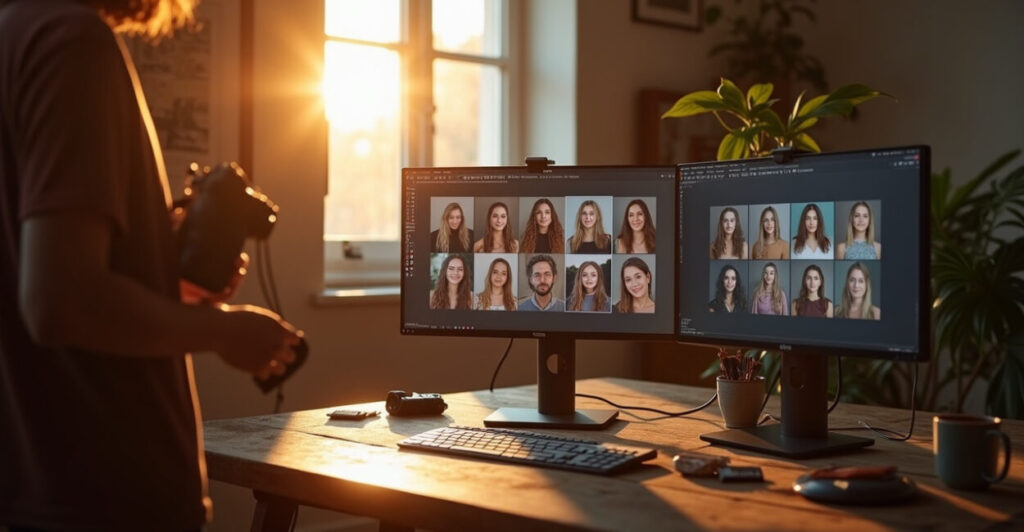
The Sync Vs. Copy Debate: When to Sync Adjustments in Lightroom
Syncing can be a time-saver — and a trap. Use Sync when lighting and composition are nearly identical. Use Copy/Paste when small crops or props differ. Batch Editing with Auto Sync on varied shots will spread mistakes fast.
Rule of thumb: if more than three variables change (light, angle, exposure, background), avoid blind syncing. Instead, sync only basic exposure and white balance, then fine-tune each image quickly.
Speed Techniques That Don’t Sacrifice Quality
Speed is not racing; it’s smart sequencing. Do this: cull, set the base edit, batch apply noise reduction and lens corrections, then tackle local fixes. Batch Editing should be layered—global, grouped, then individual. That order saves time and keeps quality high.
- Use smart previews to edit offline.
- Create presets for common setups (wrap colors, props).
- Use the adjustment brush with saved settings.
When you treat repetitive tasks as features to reuse, you stop repeating work and start refining it.
Common Mistakes That Ruin a Batch and How to Avoid Them
People make a few predictable mistakes during Batch Editing. Avoid them and your workflow breathes.
- Rushing to sync everything — this maps errors to many files.
- Over-whitening highlights — skin loses warmth.
- Using global sharpening on every image — tiny hands become gritty.
- Ignoring white balance variances — props look wrong.
The fix: always check a few random images after syncing. One bad sync can cost hours to undo.
The Comparison That Shows Why a Routine Matters (Expectation Vs. Reality)
Expectation: you edit one frame then hit sync and your gallery is done. Reality: one synced mistake can make 50 images look overexposed, flat, or too warm. Batch Editing done right means the expectation becomes reality — but only if the routine matches the shoot.
Side-by-side, a set edited with a strict routine shows cohesive color and tone. A set edited haphazardly looks inconsistent — and that inconsistency costs client trust.
A Quick Real-world Test You Can Run in 15 Minutes
I once had a session with three wrap colors and a mix of window and continuous light. I picked a neutral frame, applied my Batch Editing baseline, then checked every fifth image. In fifteen minutes I found two frames that needed local WB fixes and one that needed a highlights pull. The gallery was ready the same day. That micro-test scales: pick one image, apply baseline, inspect samples. It saves time and prevents surprises.
Want a reference on infant safety and handling during shoots? See the American Academy of Pediatrics for guidance on safe sleep and handling aap.org. For technical help with Lightroom tools referenced here, Adobe’s help pages are practical and clear adobe.com.

Final push: Batch Editing is a discipline. It frees you to craft better images faster, without trading warmth or detail for speed. When your routine is strict but flexible, your workflow becomes your signature.
How Many Images Should I Edit Manually After Batch Syncing?
After you apply your Batch Editing baseline, expect to manually adjust about 10–20% of images in a newborn session. Those are the outliers: different props, shadowed faces, or unique poses that need local work. Focus on skin tones, tiny highlights, and selective sharpening. Workflow-wise, cull to your selected gallery first, then batch edit, then mark images that need manual attention. That percentage shifts with shooting consistency: the cleaner your in-camera approach, the fewer individual fixes you’ll need.
Can Presets Replace a Batch Editing Routine for Newborns?
Presets are powerful, but they’re only one tool in a Batch Editing routine. A preset gives a fast starting point for color and tone, but newborns vary—skin translucency, lighting, and props change the result. Use presets to speed the baseline, then refine with targeted exposure, white balance, and local brushes. Treat presets like a chef’s mise en place: helpful prep that still needs a final taste and adjustment. Relying solely on presets risks a uniform look that flattens individuality.
What Specific Adjustments Should Always Be Synced Across a Newborn Set?
When using Batch Editing for newborn shoots, sync these core elements: white balance, exposure (global), profile corrections (lens), and a gentle highlight/shadow balance. These create your cohesive look. Avoid syncing local brushes, heavy spot healing, or precise sharpening. Sync noise reduction cautiously—babies shot at low ISO often need less NR than expected. The idea is to build a shared starting place, then let subtle per-image tweaks produce the handcrafted finish clients love.
How Do I Keep Skin Tones Consistent When Lighting Varies During the Session?
Start with a neutral reference image and use it to set your white balance and tone curve. In Batch Editing, sync that base, then sample skin with Lightroom’s white balance dropper on each image if needed. Use a subtle HSL hue adjustment to correct any skin shifts. If lighting changes drastically, group images by light type and run a separate baseline for each group. Consistent metering in-camera reduces the problem, but these corrective steps make the remaining fixes quick and predictable.
How Can I Speed Export and Delivery Without Losing Quality?
Optimize export by using smart previews for edits and then exporting full-resolution files with a fast SSD. Create export presets for client-ready JPGs and for archival TIFFs. Batch Editing should include an export plan: one preset for web (sRGB, 2048 px long edge), and one for print (ProPhoto/RGB, full resolution). Use parallel exports if your software supports it. Finally, automate delivery via a gallery service that accepts bulk uploads to save time and ensure your client-facing files look precisely as intended.