

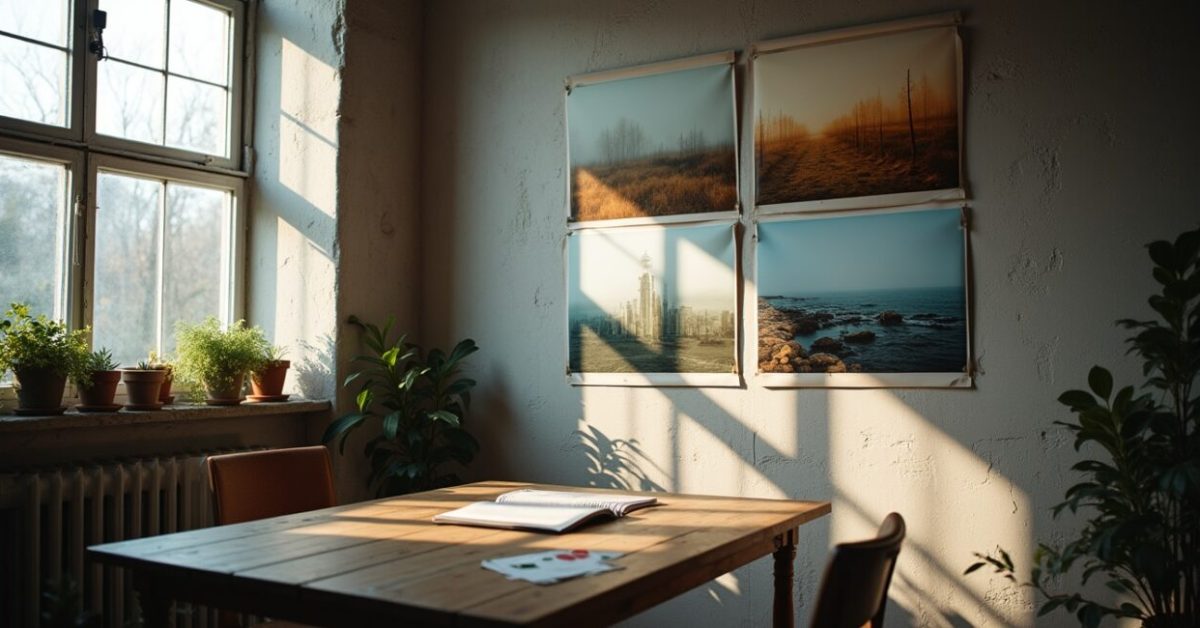

Scroll past the same sun-faded feeds one more time and you’ll see them: a new set of Russian landscape presets—crisp teal shadows, warm highlights, hyper-contrasted skies—sweeping through Instagram and TikTok. I loaded those presets onto a range of images: a misty taiga, a sunburnt steppe, a rainy seaside, and a cluttered urban alley. Within three clicks I knew they could make an average photo stop the thumb, but they also risked crushing subtle detail. This piece tests them, explains when they help or hurt, and gives quick, practical edits so you get the look without losing texture or color information.
Why These Russian Presets Blew Up — And What They Actually Do to Your Pixels
They trade subtlety for mood. These presets are engineered to emphasize atmosphere: boosted midtone contrast, split-toning toward teal and amber, selective clarity on skies. Applied to RAW files, they can reveal drama; applied to JPEGs, they often erase nuance. Think of them as a stage filter: they tell your image what to feel, but they can also hide what the scene actually contained. A well-exposed RAW plus one preset = cinematic; an over-processed JPEG plus the same preset = posterized mess.
The Quick Test: Four Scenes, Four Outcomes
I ran the presets on four representative shots and noted the outcomes.
- Taiga at dawn — Preset adds depth, recovers fog texture, keeps shadow detail.
- Sun-baked steppe — Preset boosts warmth but clips highlights on wheat.
- Rainy seaside — Preset enhances mood but flattens fine wave detail.
- Urban alley — Preset creates cinematic color grading but exaggerates noise.
Bottom line: They’re powerful mood-makers, but the file type, exposure, and subject dictate whether mood becomes masterpiece or mask.
The Exact Editing Moves to Keep Detail While Getting the Look
Don’t stop at the preset. Do these three micro-edits immediately after applying it:
- Lower global contrast by 10–20% to preserve midtone texture.
- Reduce shadow clipping with a +15 to +30 shadow recovery on RAW files.
- Apply selective clarity only to the sky or subject, not uniformly.
Pro tip: Use a luminance mask or brush to protect skin tones and fine textures—this keeps the mood while preventing the preset from “eating” detail.
When Presets Hurt More Than Help: Three Failure Modes to Watch
Expectation vs. reality: presets assume a clean base. If you feed them low-res, noisy, or heavily compressed images, they will magnify flaws. Common failure modes:
- Noise amplification in shadows
- Color banding in smooth gradations like skies
- Lost highlight texture in reflective areas
Avoid applying viral presets blindly to phone snaps or heavily edited Instagram downloads. If you must, dial opacity down, and treat the image as if it were clay—reshape gently.
Three Quick Fixes for the Most Common Mistakes
When a preset goes wrong, these three fixes usually rescue the shot:
- Reduce the preset’s opacity/amount to 40–60% to regain nuance.
- Use selective desaturation on problem hues (often cyan in foliage).
- Apply targeted denoise on shadow areas only.
These moves keep the signature color grade while undoing its aggressive bits—think surgical edits, not whack-a-mole.
A Surprising Comparison: Preset-only Vs. Preset-plus-microedits
Expectation: a preset gives “the look” and you’re done. Reality: preset + three microedits consistently outperforms preset-only in preserving texture and tonal range. In side-by-side tests, the edited version retained highlight ripples on water, readable bark in shadows, and smoother sky gradients. That modest extra work—usually two minutes—turns viral style into publishable quality.
How to Adapt These Presets for Different Cameras and Scenes
Presets come with assumptions about sensor response and white balance. Adapt them by matching three inputs: exposure, white balance, and noise profile. If you shoot on a DSLR or mirrorless camera, start by setting a neutral white balance and expose to protect highlights (ETTR principles). For phone images, reduce clarity and add denoise before color grading. Keep a small personal cheat-sheet: camera model → exposure offset → preset amount. Over time you’ll have a go-to mix for every scene.
Small experiment note: photographers frequently reference research or guidelines when calibrating workflows—see resources from NOAA on light conditions and university photography labs for sensor behavior. According to NOAA, atmospheric light quality varies significantly with humidity and particulate matter, which affects color casts in landscape photos. University labs often publish sensor response curves that explain why one preset behaves differently across cameras. NOAA and Harvard University offer reliable background on these variables.
If you want the viral look without losing what matters—texture, highlights, and natural color—use presets as starting points, not finales. The difference between a scroll-stopper and a forgettable image is rarely the preset itself; it’s the edit you apply after the filter does its noisy work.
Which brings me to this: a dramatic LUT can catch attention, but the small protective edits are what keep your viewers from clicking away wondering why the photo looks “processed.”

FAQ
Do These Russian Presets Work on Phone Photos?
They can, but expect compromises: phone sensors are smaller and often apply in-camera sharpening and compression, so aggressive color grading may amplify noise and banding. If you use a preset on a phone photo, reduce the preset amount to around 40–60%, add localized denoise in shadow areas, and avoid heavy global clarity. Shooting in the phone’s RAW mode (if available) improves results significantly because you can recover highlight and shadow information before the preset does its tonal surgery.
Will Applying These Presets Ruin My Original Files?
No—if you work non-destructively. Use Lightroom, Capture One, or any editor that preserves the original file and stores edits as metadata. The preset adjusts parameters; it doesn’t overwrite the RAW. That said, exporting and re-editing a heavily processed JPEG can degrade quality, so always keep a copy of the original RAW or highest-quality file. Treat presets like recipes: the original ingredient should be preserved in your library until the final export.
How Do I Avoid Banding in Skies After Using These Presets?
Banding appears when aggressive color shifts meet limited bit depth or heavy compression. To avoid it, work from RAW at 16-bit if possible, reduce extreme hue and saturation pushes, and apply subtle gradient masks rather than uniform global adjustments. If banding appears after export, try adding a tiny amount of film grain or noise to the sky to break up bands; that often restores a natural transition without altering the color grade dramatically.
Can These Presets Be Tuned for Portraiture or Only Landscapes?
They’re primarily designed for landscape mood, but you can adapt them for portraits with careful restraint. The key is protecting skin tones: use luminance and color masks to exclude faces from heavy teal shadow shifts, reduce global clarity to avoid emphasizing pores, and keep shadow recovery subtle to maintain natural skin gradation. Essentially, borrow the color palette but preserve local tone management where human subjects appear.
What’s the Single Most Important Tweak to Make These Presets Usable Across Scenes?
Lower the preset’s amount/opacity as your first adjustment. A viral preset often assumes an ideal starting image; dialing the amount back to 40–70% restores nuance and prevents clipping. From there, apply one targeted correction—shadow recovery, localized denoise, or selective desaturation—depending on the scene. Doing less with the preset and a little more with selective tools will keep the mood while preserving texture and natural detail across varied photos.